
Know where every hour goes
Staff tap the job and task they're on as they clock in, and switch with one tap when they move on. Every hour is logged against the work it went into, ready to cost, bill and quote from.
How it works
- 1
Add your jobs
Set up jobs, tasks and materials in the portal's Job Manager, or add them automatically with our API.
- 2
Staff tap what they're on
On the kiosk or the mobile app, they pick the job and task as they clock in, and tap Update when they move to the next one.
- 3
Every hour lands on a job
Each job and task gets its own line in your timesheet, with the hours, materials and notes that go with it.
Free for 3 months, no credit card required.
Stop guessing what your jobs cost
Timesheets tell you how long people worked. Job tracking tells you what they worked on, so labour stops being the biggest unknown in every job.
Know what a job really cost
Put the labour hours that actually went into a job next to what you quoted, and see which jobs make money.
Bill for every hour
Charge clients for the time spent on their job, backed by a clock-in record, instead of a best guess at the end of the week.
Quote the next one better
The Job Report shows the average hours each task takes on a job, so your next quote is built on facts.
Find where time goes
Mark tasks like rework or waiting for materials as non-productive, and the Job Report shows how much of the week they take.
See the whole floor, live
The Live Floor shows who is on which job and task right now, and how each job is tracking against its budget. It updates the moment anyone taps the kiosk.
Up on a TV
TV mode is a full screen board with big text to leave up in the workshop or the office. Bookmark it with your groups picked and it opens the same way every time.
By job or by person
Each job shows who is on it and a ring of its hours, sliced by task. Switch to people and everyone gets a clock face showing how far through their job's budget it is.
Hours against the budget
Give a job a budget of hours and its ring fills as the work goes on, turning amber at 80% and red once it's over. Budget a task too and see how it's tracking.
Nothing slips through
Priority jobs nobody is on flash red, jobs due soon line up down the side, and anyone on no job or with a missed clock out stands out.
The Job Report: where the week went
See where every hour went over any stretch of time: which jobs took it, which tasks, who did the work, and how much of it was rework or waiting around.
Hours by day
- Productive
- Non-productive
- Not on a job or task
Where the time went
- Productive 341.1h 80%
- Non-productive 50.6h 12%
- Not on a job or task 34.6h 8%
| Job | Hours | Non-productive | People | Budget | Status |
|---|---|---|---|---|---|
| K208 Office fit out | 64.2 | 12.8 | 3 | 98.5 / 90h | Open |
| J336 Bamford St | 58.7 | 6.1 | 4 | 71.9 / 85h | Open |
| K324 Hendy kitchen | 52.3 | 4 | 2 | 61 / 120h | Open |
| B612 Riverside deck | 46.8 | 2.2 | 3 | 46.8 / 60h | Open |
| K298 Lyall Bay bathroom | 39.5 | 9.6 | 2 | 88.2 / 80h | Completed |
| J341 Seatoun Rd | 33 | 1.4 | 2 | 33 / 70h | Open |
| Workshop maintenance | 21.4 | 5 | 140.2h, no budget | Open |
Where the time went
Every hour is split into productive, non-productive and not on a job, so you see how much of the week went into real work.
Any date range
From this week to the last 12 months, charted by day, week or month. Pick groups to look at one team or site.
Budgets at a glance
Each job's hours to date against its budget, with a count of the jobs that have gone over.
Jobs, tasks and people
A tab for each, sortable by any column, with the top ones charted so the big numbers jump out.
Average per job
How long each task takes on a job, on average. The number to reach for when you're writing the next quote.
Take it to Excel
Download the summary, jobs, tasks and people as a spreadsheet to dig into or send on.
Jobs and tasks in a tap
-
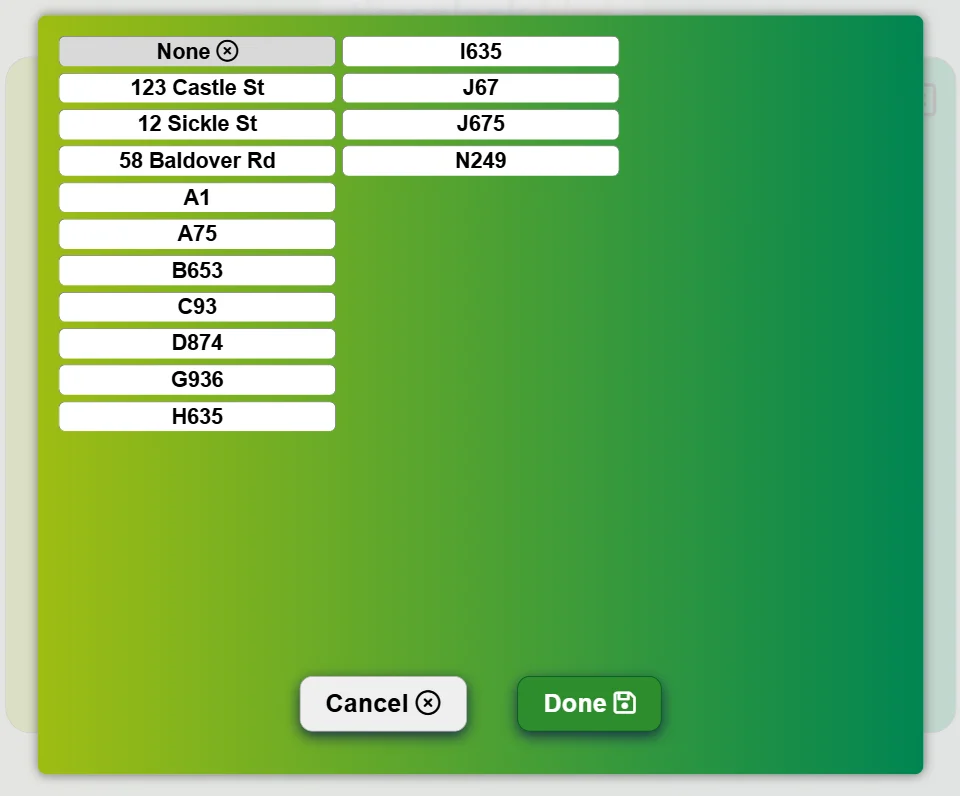
Pick from a list
Jobs and tasks show as big buttons on the kiosk, easy to hit on the way past.
-
Switch during the day
Moving to another job? Update switches it without clocking out and back in.
-
Priorities on the buttons
Priority jobs carry a red flag, and each job's button shows how much of its budget is used, so staff know what to get on with.
-
Only what you need
Turn jobs, tasks, materials and notes on or off for each kiosk, and show each team only the tasks they do.
-
Synced with your systems
Use our API to add jobs as they are created, so the list always matches your production schedule.
See the API
Know what went into every job
-
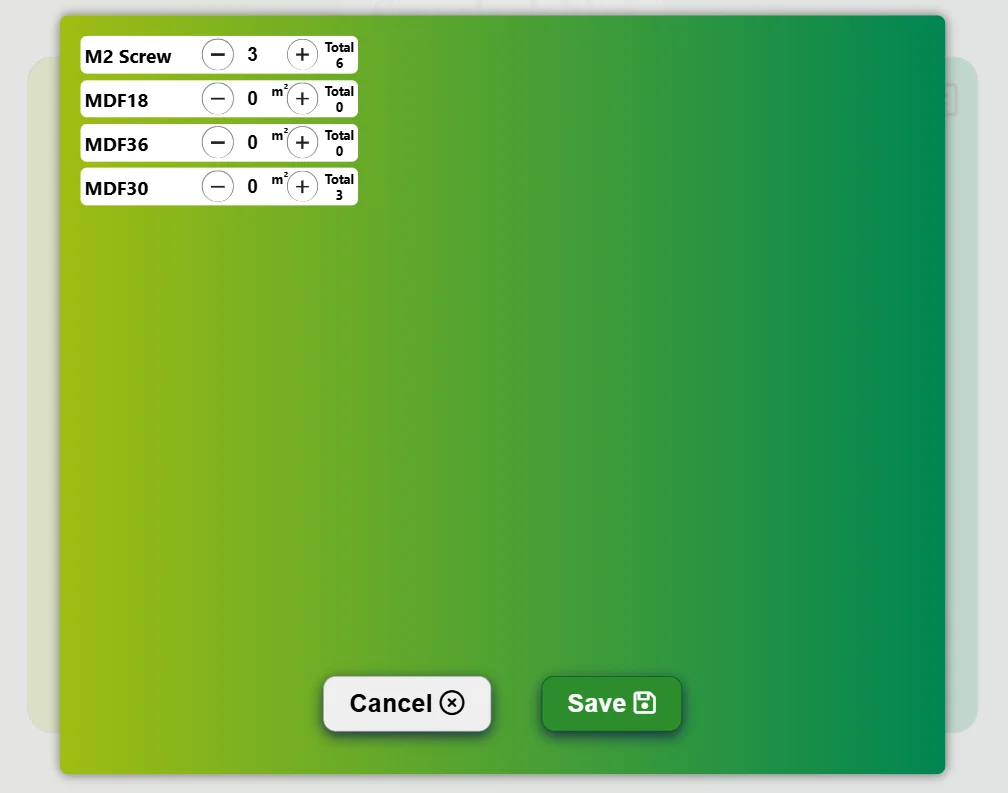
Log it where it's used
Staff record how much of each material went into a job, right at the kiosk.
-
Quick to enter
Plus and minus buttons beside each material, so there's nothing to type.
-
Your own material list
Keep the list of materials in the portal, and see what has been used on each job.
Notes between the floor and the office
Something wrong with a job? Staff leave a note on it from the kiosk, and the office can read it and reply from the portal.
On the road too
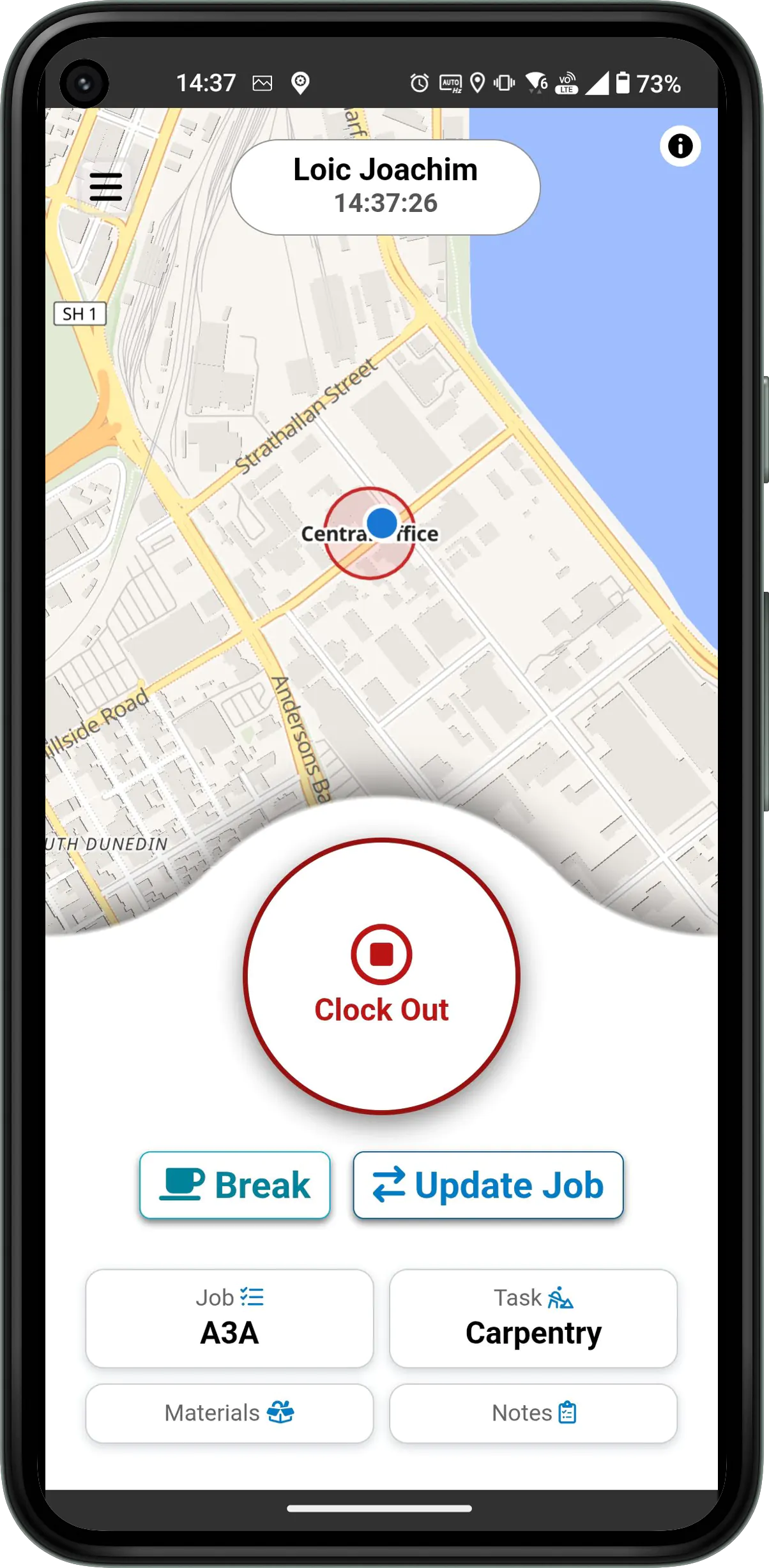
Crews out in the field get the same job, task, material and note tracking in the mobile app, so work done off site is counted too.

See it on a real shop floor
Free for 3 months, no credit card required.